 PortraitArt


Meet ArtlyAI: 12 Things You Can Do Beyond Photo-to-Art
Why we built ArtlyAI
Since we launched PortraitArt, you've created more than 2.7 million art pictures with it. Along the way, many of you asked for things that happen before and after the art itself.
Can you fix this faded scan of my grandparents first? Can I print my watercolor portrait as a large canvas? Can I remove the stranger in the background? Can I put my dog and my daughter in the same picture, even though they've never posed together?
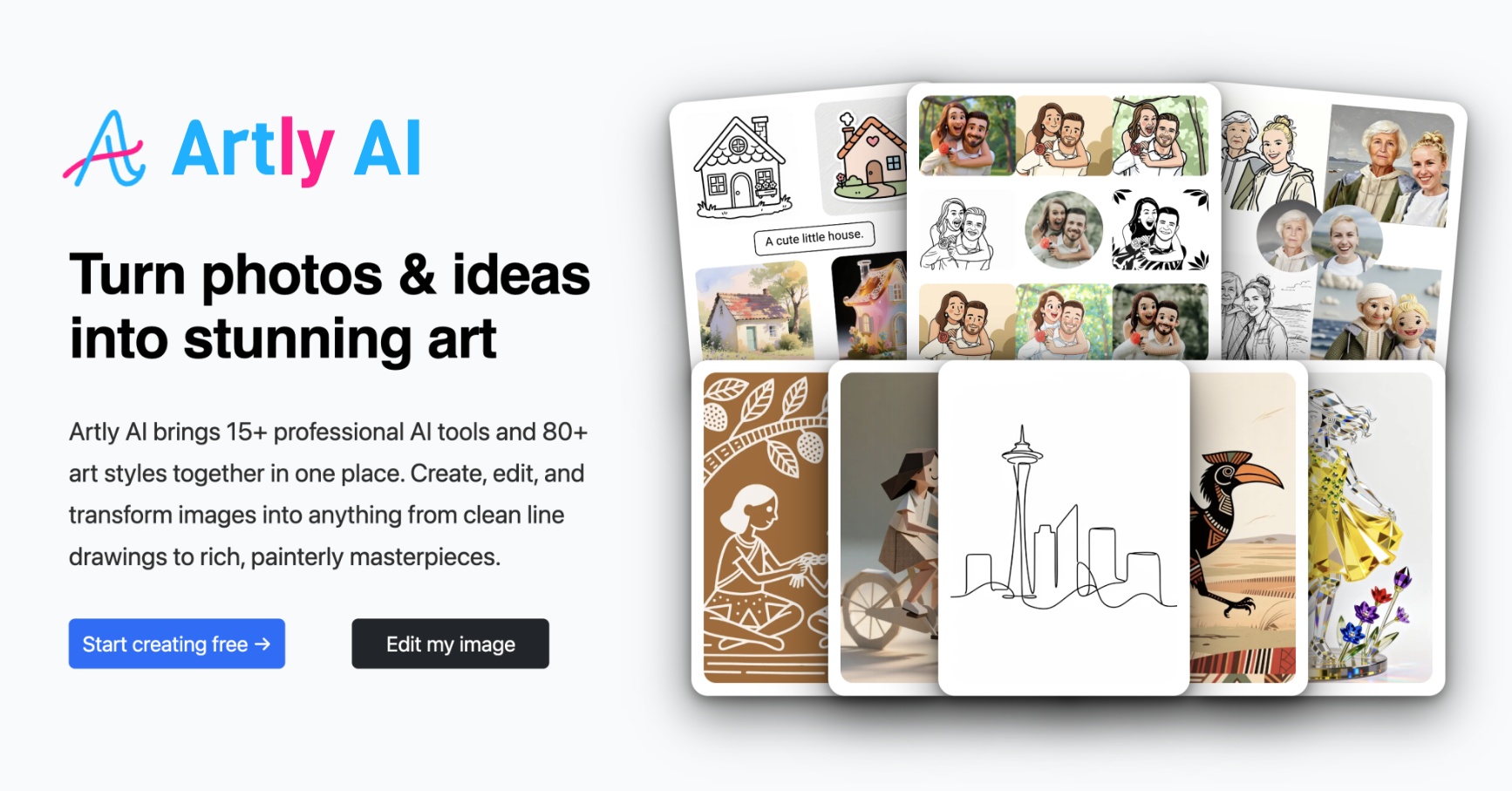
Those requests didn't fit inside PortraitArt, which does one thing well: turning your photos into art in 80+ styles. So the same team built a sister app, ArtlyAI, to handle the rest.
PortraitArt isn't going anywhere. Keep using it for photo-to-art. Below are the 12 tools in ArtlyAI that you won't find here, and how they fit with the art you already make.
Rescue old and damaged photos
The best art starts with a good photo, and the photos that matter most are often the oldest ones. These two tools fix them first.
1. Clarity Restore. Upload a blurry, faded, or scratched photo. ArtlyAI improves clarity, removes spots and defects, and brings back washed-out color. It works well on family snapshots from the '70s and '80s and on low-resolution phone pictures.
2. Clean Up Scanned Picture. Scanned a print or a page from an album? This tool straightens a crooked scan, corrects distortion, and cleans up the page, so you get a flat, crisp image instead of a photo of a photo.
Tip: restore an old photo in ArtlyAI first, then bring it back to PortraitArt for an oil painting or watercolor. A cleaner input gives a noticeably better portrait.
Make your art print-ready
A portrait that looks great on a phone can look soft on a 24-inch canvas. These two tools close that gap.
3. Upscale to High Resolution. Choose 4MP, 8MP, or 16MP output. A 16MP image is roughly 4,900 × 3,300 pixels, enough for a sharp print of about 16 × 11 inches at 300 dpi, and larger on canvas viewed from a distance. AI upscaling adds real detail rather than just stretching pixels.
4. Vectorize to SVG or PDF. Vector files scale to any size with no blur at all. That makes them the right format for laser engraving, vinyl cutting, T-shirt printing, and signs. It pairs especially well with PortraitArt's line art, bold line, silhouette, and coloring page styles. Think of a family portrait engraved on a wooden cutting board.
Fix the photo, not just the style
PortraitArt keeps everything in your photo. Sometimes that includes things you'd rather not keep. ArtlyAI's editing tools let you change the picture itself, with no Photoshop skills needed.
5. Remove or Change Background. One click gives you a clean, transparent cutout of a person, pet, or product. Or replace a cluttered living room with a garden, a studio backdrop, or a beach, and the subject blends in naturally.
6. Magic Eraser. Mark a photobomber, a trash can, or a power line, and AI fills the space with matching background.
7. Magic Fill. The opposite of erasing: select an area and add or replace something, such as a party hat, a bouquet, or a different shirt, so it matches the rest of the image.
8. Magic Expand. Turn a tight phone crop into a wider scene by letting AI extend the image past its borders. Useful when a close-up portrait needs room to fit a landscape frame or a 16:9 banner.
9. Edit by Asking. Just describe the change in plain words, like “make it a snowy evening” or “change his shirt to red,” and ArtlyAI does it. No brushes, no selections.
Create pictures that never existed
PortraitArt restyles a photo you already have. These tools create new scenes, starring the people and pets you love.
10. Character Art. Upload reference photos of one or more people or pets, describe the scene, and pick a style. You get a brand-new picture of them: grandma and granddaughter baking together, your kids riding a dragon, or your cat on a throne. It covers the same 80+ art styles you know from PortraitArt, plus realistic photo looks such as cinematic, candid, vintage, and black and white. Choose any shape from square to 16:9 widescreen.
11. Text to Image. No photo needed. Type what you imagine, choose a style, and get an original image in seconds, ready for a card, a poster, or a children's story.
12. Compose Image. Combine pieces from several photos into one seamless picture. It's the fix for the family photo where someone is always missing: bring everyone, including the dog, into one frame.
Try ArtlyAI free
Every new account gets 5 bonus credits at sign-up, plus 3 free AI art pictures every day, and you can try every tool before paying. If you need more, paid plans are monthly with no lock-in, and yearly billing saves 20%. See full details on the ArtlyAI pricing page.