 PortraitArt


How to Turn a Photo into a Watercolor Painting
Watercolor has a softness that photos can't match: translucent layers of color, edges that bleed into each other, and the white of the paper glowing through. The good news is that you don't need years of painting practice to get that look from your own photos. Here are three ways to do it, from a weekend art project to a finished painting in under a minute.


Quick answer: The fastest way to turn a photo into a watercolor painting is with an AI tool such as PortraitArt's photo-to-watercolor converter: upload a photo, choose the Watercolor style, and download the painting in seconds. You can also paint it by hand using the photo as a reference, or apply a watercolor filter in a photo editor, though filters tend to look less like real paint.
What makes a watercolor painting look real?
Before choosing a method, it helps to know what separates a convincing watercolor from a photo with a blur applied. Watercolorists work quite differently from oil painters, and these are the qualities your eye picks up on:
- White paper as the light. Watercolor is transparent, so painters don't add white paint for highlights. They leave the paper bare. Bright, unpainted areas are a signature of the medium.
- Soft, bleeding edges. Wet paint spreads into neighboring areas, creating soft transitions, blooms and "cauliflower" edges that are hard to fake.
- Layered, translucent color. Colors build up in thin glazes, so you can see one layer through another instead of flat, opaque fills.
- Simplified detail. A good watercolor suggests rather than describes. Hair, foliage and backgrounds become loose washes while faces and focal points stay crisper.
- Paper texture. Pigment settles into the grain of cold-press paper, giving a subtle granulated texture.
Keep these in mind as you compare the methods below.
3 ways to turn a photo into a watercolor painting
1. Paint it by hand from your photo
The traditional route: print your photo, transfer a light pencil outline to watercolor paper (by tracing, a lightbox or the grid method), then build up color from the lightest washes to the darkest details. Work light to dark, reserve your highlights as bare paper, and let each layer dry before adding the next.
Best for: people who want to learn watercolor or create a one-of-a-kind physical original. Trade-off: it takes practice, materials and many hours, and portraits are among the hardest subjects to get right.
2. Use a watercolor filter in a photo editor
Photo editors and many phone apps offer a "watercolor" filter or effect. In Photoshop, for example, you'll find one under Filter > Filter Gallery > Artistic, and you can combine it with texture overlays and layer blending for a more painterly result.
Best for: quick effects on social media posts. Trade-off: filters process pixels in place, so the result usually still looks like a photo with a texture on top. They rarely simplify detail, leave white paper or create natural bleeding edges.
3. Use AI to repaint your photo as a watercolor
AI tools like PortraitArt don't filter your photo; they repaint it. The AI keeps the subject, pose and composition, then re-creates the image with watercolor washes, soft edges and open paper, the way an artist would interpret it.
Best for: anyone who wants a gallery-quality watercolor of a person, pet or place without painting it themselves, especially for prints and gifts. Trade-off: you get a digital file rather than a hand-painted original, though it prints beautifully on watercolor paper.
| Paint by hand | Photo filter | AI (PortraitArt) | |
|---|---|---|---|
| Time | Hours to days | Minutes | Seconds |
| Skill needed | High | Low to medium | None |
| Looks like real watercolor | Yes | Often looks filtered | Yes, painterly washes and edges |
| Easy to try again | Start over | Adjust sliders | One click for a new version |
| Output | Physical original | Digital file | High-resolution digital file |
How to turn a photo into a watercolor with PortraitArt
- Upload your photo. Open the photo-to-watercolor tool and select a photo from your computer or phone.
- Choose the Watercolor style. Pick "Watercolor" from the list of 80+ art styles. Your painting is generated in moments.
- Resample until you love it. Every generation is a little different, just like a real painting. Click the "🎲 Resample" button (or the Watercolor style again) to get a new version, then keep your favorite.
- Download and print. Save the high-resolution file to share online or print on watercolor paper for a framed piece.
Photo to watercolor examples
Watercolor works well for almost any subject. Each example below was created from the photo shown in the corner of the frame.


Couples and engagement photos
Soft washes flatter skin tones and give engagement and anniversary photos a romantic, timeless feel.


Wedding portraits
One of the most popular uses. See more ideas in our guide to DIY wedding portraits.


House portraits
A watercolor of a home makes a thoughtful housewarming, closing or "our first home" gift, and a keepsake when leaving a family house.

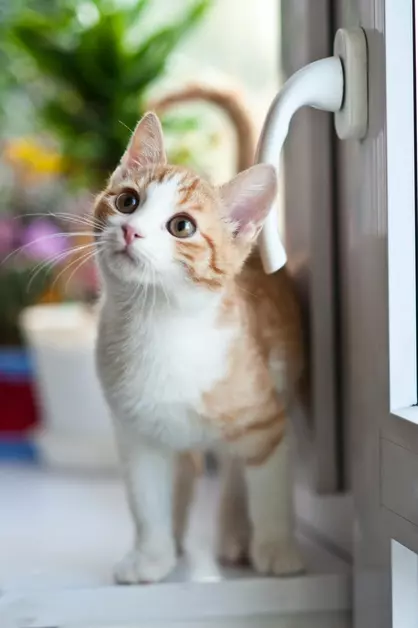
Pet portraits
Loose brushwork is perfect for fur. Watercolor pet portraits are a favorite gift for pet lovers and a gentle way to remember a pet who has passed.
Tips for the best watercolor results
- Start with a clear, well-lit photo. Soft natural light gives the best tonal range. Very dark or heavily backlit photos lose detail in the faces.
- Use the original file. A full-size photo works better than a screenshot or an image saved from social media.
- Choose a simple background. Watercolor naturally loosens backgrounds into washes, but a cluttered scene can still pull attention from your subject. Crop in if needed.
- Get close for pets and portraits. When the subject fills most of the frame, eyes and expressions come through more clearly.
- Generate a few versions. Like a real painter, the AI interprets each photo slightly differently. Resample two or three times and pick the one that feels right.
- Try related styles too. If you love the soft look, compare it with Chinese ink, pencil sketch or vintage. For a richer, heavier look, try oil painting.
How to print your watercolor painting
The right paper makes a digital watercolor look and feel like the real thing:
- Cold-press watercolor or fine-art paper. Ask your print shop for a giclée print on textured, matte fine-art paper. The grain echoes real watercolor paper and the matte finish avoids glare.
- Leave a white border. Real watercolors usually have unpainted margins. A white border plus a mat in a simple frame makes the print look like an original.
- Check the resolution. For sharp prints viewed up close, aim for about 300 pixels per inch (an 8×10 print needs roughly 2400×3000 pixels). Check your file's dimensions before choosing a size.
- Avoid glossy photo paper. Gloss makes a painting look like a photograph again.
Frequently asked questions
Can I turn a photo into a watercolor painting for free?
You can try PortraitArt with trial credits to see how your photo looks as a watercolor before you buy anything. See the pricing page for current plans; no subscription is required.
Is an AI watercolor the same as a watercolor filter?
No. A filter adds texture to the existing pixels of your photo. AI repaints the image, simplifying detail, leaving areas of white paper and creating soft, bleeding edges the way a watercolor artist would.
Does it work with pets, houses and landscapes?
Yes. Watercolor works well for portraits, couples, families, pets, homes, travel photos and landscapes. Photos with a clear main subject give the best results.
How long does it take?
Each watercolor is generated in seconds. Most people spend more time choosing their favorite version than waiting for it.
What if I don't like the first result?
Click "🎲 Resample" to generate a new version from the same photo. Each one is a fresh interpretation, so a few tries usually gets you one you love. Trying a different, clearer photo also helps.
Can I print and frame it?
Yes. Downloads are high-resolution and print well on matte fine-art or watercolor paper. See the printing tips above for paper and sizing advice.
Turn your favorite photo into a watercolor
Upload a portrait, pet, couple or home photo and get a print-ready watercolor painting in seconds.
Try Photo to Watercolor